The customer reachability mark in the ticket list now has a label: «Not in chat» when they closed the widget and «TG blocked» when they blocked the bot.
The ticket row used to show only a yellow or red dot, with the meaning in a hover hint that a phone never shows. Now a word or two stands next to the dot. The full text, with how long ago the customer left the chat, is still in the hint and the contact card.
Fix
Sign-in on a phone: the logo stays clear of the buttons
On the sign-in and sign-up pages the logo no longer slides under the theme and language buttons, and the Cloudflare check follows the chosen theme.
On a narrow screen the sign-in form started level with the theme and language buttons in the top right corner, and the logo partly slid under the theme button, which was easy to see in the light theme. On a phone the form now starts below these buttons. The “Verify you are human” check used to be dark at all times, now it is light in the light theme, dark in the dark one, and switches along with the theme.
Fix
Reply previews in the Inbox without markup
The ticket row no longer shows bold asterisks and link markup in the operator's last reply, only the text, the way the conversation shows it.
Operators' replies, templates and macros are written with markup: bold, links, code, lists. The conversation always rendered it properly, while the Inbox row preview showed it as typed, «**subscription**», «[account](https://…)». The operator's reply preview is now cleaned the same way as the assistant's. Customers' messages are left as they are.
3 changes
New
Search the conversation with Ctrl+F
Ctrl+F (Cmd+F on a Mac) in an open ticket searches the whole conversation, highlights what it finds and scrolls to it, even to the earliest messages.
The browser's find saw only the messages already on screen, while earlier ones load as you scroll. Now Ctrl+F opens a search bar above the conversation: case and «ё» don't matter, and automatic notes and file names are searched too. Enter goes to an earlier match, Shift+Enter to a later one, Esc closes it, and Ctrl+F once more in the field gives the browser's usual find. On a phone the same search is “Search the conversation” in the More menu.
Improvement
Copy just this conversation
When a conversation shows the customer's earlier tickets, the More menu copies this conversation alone or all of the tickets.
In messengers a ticket's thread also shows the customer's earlier tickets, and “Copy conversation” took them all. Now the menu has two items in that case: “Copy this conversation” takes only this ticket's messages, “Copy all of the customer's tickets” takes the whole thread, as before. Where there are no earlier tickets, the single “Copy conversation” stays.
Improvement
Paste a ticket link into the search
A ticket link pasted into the Inbox search or the section search opens that ticket right away, so on an iPhone a link from Telegram opens in the app.
An iPhone opens links from Telegram, mail and other programs in Safari and doesn't pass them to the Home Screen app, an iOS limitation no website can get around. Now it's enough to copy the link and paste it into the search in the app: the ticket opens in its project. On a computer links still open in the app by themselves.
2 changes
Fix
Notifications no longer cover a phone's screen
At most two pop-up notifications show at once on a phone and three on a computer, and new ones from one project replace each other.
When another project had a stream of new messages and deadline warnings, notifications stacked in a column and covered a phone from top to bottom. Now one project's notifications of one kind show as a single line with the latest event, the text takes at most two lines, and errors don't disappear under a stream of notifications. All notifications are still in the bell.
Fix
The ticket list no longer jumps when you switch chats
Departments in the rows and the numbers on the tabs no longer vanish for a moment when you open the next ticket.
The list beside the conversation loaded anew for each ticket: for a moment departments turned into an orange “Department”, the tabs lost their numbers, then everything came back and the rows jumped. Now department names and numbers stay in place and refresh quietly. The Departments settings also show all departments now, not the first twenty.
1 change
Improvement
The VPN card explains why it didn't find the customer
Instead of “User not found” for any error, the card tells the cases apart: the customer isn't in the bot, the address doesn't lead to the bot's API, there's nothing to look up by, the bot rejected the key or is down.
The card used to say “User not found” for any 404 answer, including when its settings pointed at another server, so it looked as if the customer wasn't in the bot. Now each answer of the bot has its own line with a hint on what to fix. For a widget visitor without a verified ID the card says so: an email and Telegram ID they typed in themselves aren't sent to the bot. The cards of connected VPN projects are updated, and the projects' own rules are kept.
2 changes
Fix
A customer's language is named in your panel's language
The contact card, the Inbox and the knowledge base now name a language in your panel's language: Russian in the English panel, «Английский» in the Russian one.
The Widget language and Language rows of the contact card, the hint on a language code in the Inbox and the language hints of knowledge base articles showed a language by its own name, so the English panel read «Русский». Now a language is named the way your panel's language names it. The widget language of your customers was detected correctly before as well, only the label changed.
Fix
Staff notes in a conversation are in your panel's language
“Ticket auto-assigned”, snoozes, putting a ticket back in progress, transfers, BILLmanager actions and the assistant's hand-over summary now read in your panel's language, and a snooze ends in your own time zone.
Only staff see these notes, but they were stored as ready Russian text, so the English panel couldn't read them. Now everyone sees them in their own panel's language, even when people with different languages work in one conversation. Older notes are translated too, except those worded by your project's own templates, which stay as they were. The API and exports keep the notes' text as before.
6 changes
New
Connecting the VPN bot, step by step
A new docs page: the API key, the bot's switch, the client card and troubleshooting. The bot can set up the client card itself through the API.
The “Connecting the VPN bot” docs page walks through the whole connection and its errors. The first one, “SDK isn't installed or the integration isn't set up”, almost always means “Включить SupportHub” is off in the bot. No top-up is needed to connect. For bot developers the API now has PUT /api/v1/integrations/vpn-bot: with the project key it sets up the same client card as the “Ready-made VPN client card” preset, the bot's key is stored encrypted, and calling it again doesn't create a second card.
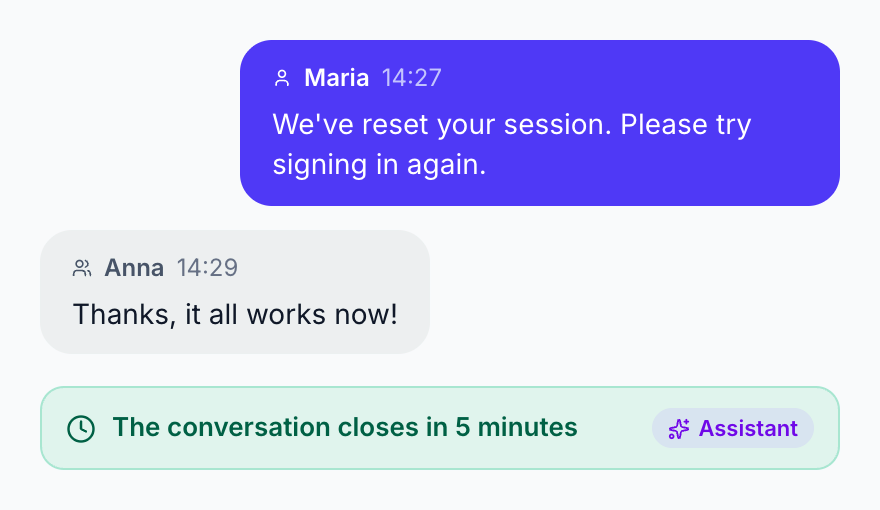
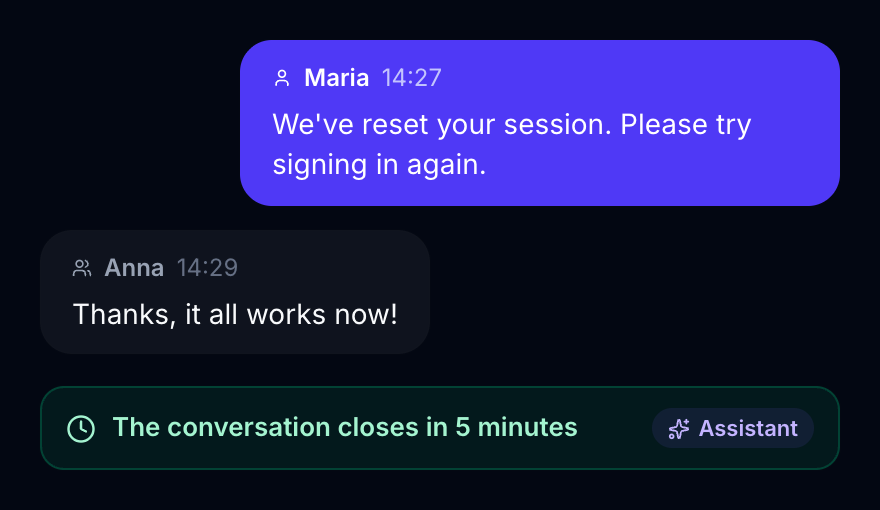
The assistant closes a ticket by what the customer means
“Got it, thanks, you can close it” under an operator's answer closes the ticket, typos and all.
Where an operator leads the ticket or the assistant has handed it to a staff member, the assistant reads any thanks by its meaning: whether the question is sorted, whether the customer understood the answer or let the ticket be closed, and whether the message holds a complaint, money, a new question or a caveat. When the customer has finished, the assistant thanks them, and the ticket closes 5 minutes later unless the operator replies in the meantime. Before, only messages with words like “it works” or “the question is sorted” closed it this way.
Improvement
The project ID is visible and copies in one click
A Project ID (Workspace ID) line with a copy button sits under the Settings title, in Channels and next to the widget code.
Integrations ask for the project ID: the BILLmanager module, external services with a “Workspace ID” field, your own widget code. Before, it was only shown as a line on the REST API and email cards. Now it sits under the title of the main Settings page, in Channels on the Web Widget, REST API and email cards, and in the widget builder’s Embed snippet window, with a Copy button next to it.
Improvement
Push on a device repairs and checks itself
When notifications stop reaching a device, the app reconnects them by itself and sends a check notification. No more test push or switching push off and on.
If a device stops confirming pushes (it happens when iOS loses the app's subscription), opening SupportHub there makes the app replace the subscription 20 seconds later and send a notification, “Check: notifications work on this device again”. In the profile, the “Devices with push notifications” card shows each step: “Reconnected… waiting”, then “Reconnected automatically”. If the check one doesn't arrive within a minute, or notifications are blocked in the device settings, the card says what to fix there. The “Notifications on … aren't arriving” strip on your other devices goes away by itself as soon as that device gets pushes again, no reload needed. The iOS version in the device list is right now too: since iOS 26 the browser reports it differently, and an iPhone on iOS 27 read as iOS 18.7.
The assistant no longer holds back an answer saying bonuses and compensation aren't refunded.
An answer with the refund terms from the knowledge base didn't reach the customer: the assistant took the word “compensation” in a “not refundable” rule for a promise to pay, and the question went to an operator. The assistant still makes no promises of money (“we'll refund you”, “we'll credit compensation”).
Fix
Sound switched off stays off in every window
The sound switch is now one for the whole account: turn it off in one window and the sound stops in every window, browser and on your phone at once. A new message rings once instead of several stacked rings.
The speaker switch in the Inbox and in the profile used to be remembered by the browser, and every window keeps its own: the desktop app, another browser, the phone. The sound was switched off in one window while another kept ringing. Now the switch is saved to your account, and your other windows pick it up within a fraction of a second, no reload needed. If you had switched the sound off in some browser before, opening the dashboard there next time switches it off for the account by itself. Also fixed: one new message started the sound up to five times at once, so the ring came out loud and rasping.
A customer replies “Thanks, it works” to an operator? The assistant checks the message holds no complaint or new request and closes the conversation five minutes later.
More detailsHide details
The assistant now also closes a conversation when the customer replies to an operator with “Thanks, got it, it works” or similar words. The model checks that the message holds no complaint, money question, new request or reservation, and five minutes later the conversation closes with a thank-you to the customer. The answers log shows what the model said.
A pause before the assistant answers, and a human-like mode
The assistant waits until the customer has finished typing and answers everything at once. In human-like mode the pause is random within the range you set.
The AI settings now have «Pause before answering, seconds» and «Answer like a real person» with a delay range. Each new customer message moves the answer time, while the assistant waits the customer sees «typing…», and the «New message» notification waits for its decision. If the assistant can't answer within 5 minutes after that time, it doesn't, and the operator is notified.
Give a customer 1 to 5 stars for a ticket and leave a comment. The average shows in the customer card, the contacts list and analytics.
Only the project's staff see ratings: the customer, the widget, conversation links, PDF statements and the integrations API never get them, nor does the assistant. The contacts list sorts and filters by the average, and the ticket shows the rating history with comments. Streamer mode blurs the comments.
New
A new What's new: short titles, details on click and a release email
Changes are grouped by day, each with a short title and a line, and the full text opens on click. The page is open without signing in, and you can subscribe to a release email.
From the account the subscription turns on at once, from the public page after you confirm it by the link in the email. The email comes once a day at 07:00 UTC when something new is out, and one button in the email unsubscribes. The archive goes month by month.
Settings → Ratings has a new rule: when the team's average rating of a customer is at or below the threshold, their messages aren't accepted in any channel, just like a regular block.
The average threshold, from 1 to 3, and the minimum number of ratings are set in the rule, and before saving you see how many customers it would affect. The rule never touches manual blocks. If an operator opens support to a customer by hand, the rule won't close it again until a new rating. Loosen or turn off the rule and everyone it closed support to gets it back. The customer sees neither the rating nor the reason. The hints in the «Customer rating» block no longer run past the column edge either.
The assistant can answer customers using internal articles
A new switch on the Memory page: the assistant's answers to customers also draw on published articles hidden from customers. Customers never get links to them, and drafts are never used.
Internal articles reach the assistant as a separate block: it retells the facts in its own words and never passes on what is for staff only — staff names and contacts, logins, passwords, internal links and procedures. Knowledge-base hints, bot menus and the widget's Help tab still show public articles only. The decision breakdown and the answer journal mark internal articles. The switch is off by default.
AI provider availability: outage notices and a 90-day history
When the AI or embeddings provider stops answering, the owner and admins get a notification and the project's pages show a banner, and when the provider is back they learn how long the outage lasted.
An outage is when calls keep failing for at least 2 minutes, a single failure doesn't count. While the provider is down, SupportHub checks it every 5 minutes itself. The AI settings have a new «Availability history» section: availability over 7, 30 and 90 days, a strip by day and the list of outages. The notification is turned off in the profile with the «AI provider outages» switch.
Open a conversation on one device and its notification clears from the others at once, or with the next push if the app is closed there.
A notification about a conversation you already opened on another device now goes away on this one too: at once if the app is open there, otherwise with the next notification or when you open the app. iPhone, iPad and Safari on Mac don't let a site remove it in the background instantly.
Improvement
Editing a Telegram reply changes files too.
Replace a photo, remove one or add a file, and the customer's message updates in place or, failing that, is resent to replace the old one.
Editing a reply in Telegram now changes its files too: replace a photo, remove one or add a file, and the customer's message updates in place. When that isn't possible, the corrected reply is sent again and the old one is deleted. Replies older than 47 hours or sent before this update still change only their text.
Improvement
The assistant reads a customer's thanks together with their other messages
Whether the customer is only saying thanks is decided over everything they wrote since support's last reply. A thanks next to a new question no longer hides the question.
Improvement
Delete a digest without leaving its editor
A digest opened from Answer sources opens straight in the editor, and it now has Delete next to Cancel and Save.
Deleting another digest no longer closes the one you are editing, and what you typed stays.
Improvement
Copy a link from the conversation
Right-clicking a link in a message opens the menu with Copy link at the top. A long press does the same on a phone.
Links elsewhere in the dashboard open the browser's usual menu again, with Copy link address and Open in new tab. On a phone the message menu has Select text back, for copying part of a message.
Improvement
Emails and phone numbers in conversations are links
An email address in a message opens a new email, and a phone number starts a call, both in the dashboard and in the website widget.
A number counts when it's written with + and a country code, or as a Russian number starting with 8. IP addresses, dates and order numbers stay text. In the message menu an email has Copy email address and a number has Copy phone number.
Fix
Pressing again doesn't duplicate an edit.
While an edit is saving, a second press doesn't send it again, and two edits in a row don't stack identical pop-up messages.
Two edits in a row no longer stack identical pop-up messages, and pressing again while an edit is being saved no longer sends it twice.
Fix
A digest edit is saved even when the embeddings provider doesn't answer
Saving used to hang forever. Now the embeddings provider gets no more than 20 seconds, and a digest marked «not searchable yet» joins the assistant's search as soon as the provider answers again.
Article search for answers and learning from conversations get the same 20 seconds: when the embeddings provider doesn't answer, the assistant searches articles by words instead of hanging. The digest's vector is computed automatically within 10 minutes after the provider is back.
A BILLmanager screenshot without text now notifies the team
When a customer sent only a picture or a file to a ticket, the team got no push and no bell. Now «New message» comes for it too, with the file name in the preview.
When the project's assistant answers, the notification about a question still waits for its decision, while one about a screenshot the assistant doesn't look at comes at once. A new ticket that starts with a screenshot comes as one «New ticket», with no second notification.
Fix
Quoting a message from the customer's earlier ticket no longer gets lost
A reply quoting a message from the history above the conversation went out without the quote. Now the quote stays, and Telegram, VK and WhatsApp attach it when the message was in the same chat.
If the quoted message was deleted, the reply goes without the quote and the panel says so. An internal note can't be quoted in a reply to the customer. The history above the conversation now shows the latest messages of earlier tickets, not the oldest.
Fix
BILLmanager: the assistant answers a question even with a screenshot next to it
When a customer sent a question followed by a screenshot, the assistant kept silent. Now it answers the question, and a «Yes» followed by a screenshot closes the ticket on the inactivity reminder.
Files the assistant doesn't read — documents, archives, video, audio, and pictures when the model can't see them — reach the team as a notification at once, without waiting for its decision.
Fix
“What went wrong?” is in sight after a thumbs-down
After No under an article, or 👎 under a news post, the widget scrolls to the comment field itself. It used to open below the edge.
On a computer the cursor is already in the field. The website page itself doesn't scroll. The same goes for the knowledge base in the Telegram Mini App.
10 changes
NewConversation
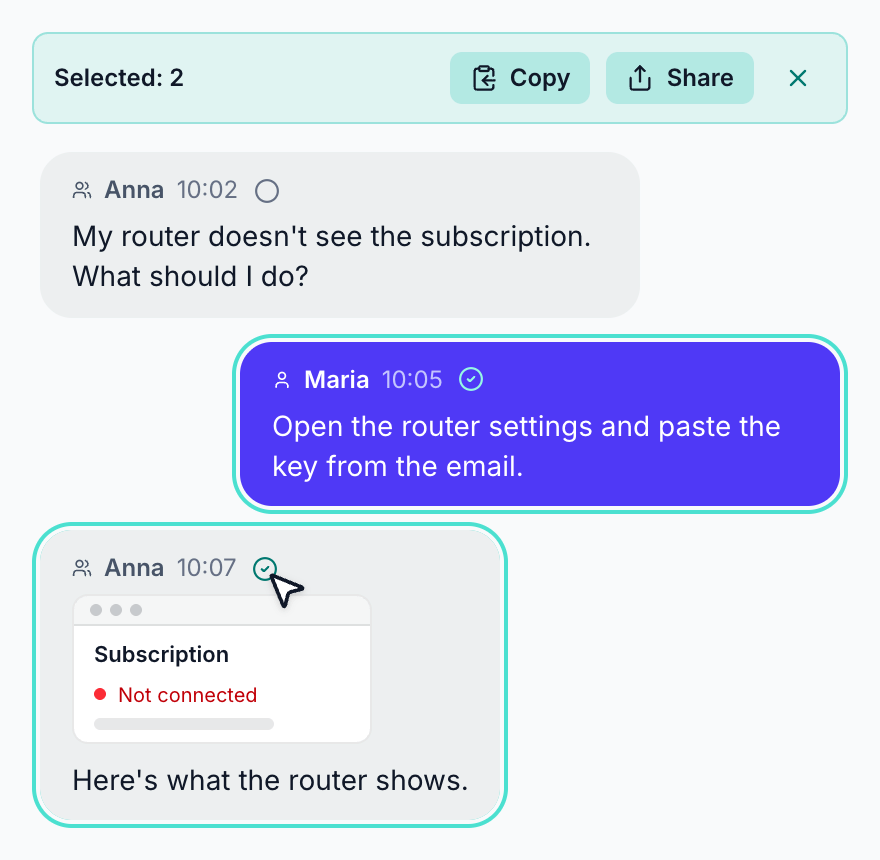
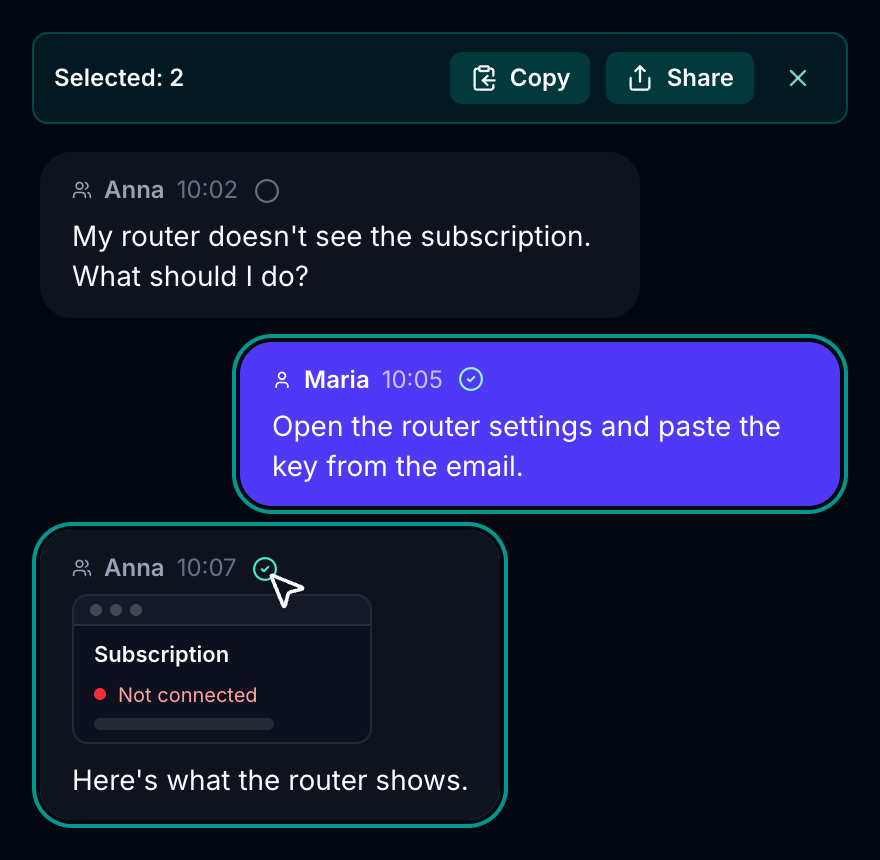
Select and copy messages.
Drag from the circle next to a message or Shift+click a range. “Copy” takes the text along with the pictures and file links.
More detailsHide details
Messages in a conversation can now be selected by dragging: hold a message's circle and move up or down, and Shift+click selects everything from the last one you picked. Copy puts the text in the clipboard together with images and file links. A single image pastes as an image, several paste along with the text into a document or an email.
New
A text version of a conversation for AI.
The “Copy for AI” button in the ticket's links window gives a /share/ai/… address, and an AI assistant reads the whole conversation.
A conversation link now has a text version for AI: the /share/ai/… address serves the same conversation as plain text, so an AI assistant reads all of it without wading through the page. Copy it with Copy for AI in the ticket's links window and in Conversation links, or from the conversation page itself.
New
A shared conversation can be frozen.
The “New messages” option “Up to the last message” hides anything that comes later on the page, in the PDF and in the text for AI.
A conversation link has a New messages option: In real time shows new messages too, Up to the last message fixes the conversation at the moment the link is issued, so what comes later isn't shown on the page, in the PDF or in the text version for AI.
New
A “Share” button for selected messages.
Messages go through the system share menu to Telegram or another app along with their photos and documents.
The message selection bar has a Share button: the selected messages go through the system share menu to Telegram or another app along with their photos and documents. On an iPhone the text arrives as a separate message and the photos as an album. On a Mac the files go to the menu and the text is copied to the clipboard, ready to paste into the Comment field in Telegram's window.
Improvement
Telegram stickers move in the conversation.
Animated stickers play right in the feed, as in Telegram itself, instead of showing a card with a link to the file.
Telegram animated stickers now play right in the conversation, the way Telegram shows them. They used to appear as a card with a link to the file.
Improvement
A shared conversation looks like the chat.
It has quoted replies, voice messages with a waveform, albums and reactions, and new messages appear while the page is open.
A conversation link now looks and works like the chat in the dashboard: replies with a quote and a thumbnail, animated stickers, voice messages with a waveform, albums, reactions. Pick the order at the top, Oldest first or Newest first, use the arrows at the edges of the feed, and new messages appear by themselves while the page is open.
Improvement
Copied messages paste with their files.
The text goes into the reply field, and photos, documents, voice messages and videos are attached as originals under their own names.
Messages copied with Copy on the selection bar now paste into the reply field in full: the text goes into the field, and photos, documents, voice messages and videos are attached as they were sent, as originals under their own names. Sending waits while the files load.
Fix
Conversation links don't trap you in the app.
On iPhone such a link from the app opens in Safari, and on a computer the conversation page has a “Back” button.
A conversation link opened inside the installed app is no longer a dead end. On an iPhone it opens in Safari, and on a computer the conversation page now has a Back button.
Fix
“Show earlier” keeps your reading place.
Messages are added above in portions, what you were reading stays in place, and near the top the next portion loads by itself.
Show earlier in a conversation no longer throws you back to the start: messages are added above in portions, and what you were reading stays in place. Near the top the next portion loads by itself.
Fix
Drag to select with a finger on iPhone.
Move your finger up or down from the circle next to a message, and the feed stays put, moving by itself only near the edge.
On an iPhone you can now drag to select messages with your finger: put it on the icon next to a message and move up or down, the conversation doesn't scroll and moves by itself near the edge. And the conversation no longer slides away under your finger or mouse when the drag starts near its edge.
4 changes
New
The assistant understands voice messages.
It transcribes voice messages and round videos from Telegram and the widget, replies, and the operator sees the text under the recording.
The assistant understands customers' voice messages and round videos in Telegram and the widget: it transcribes the recording and answers it as text, and the operator sees that text under the voice message right away. What transcribes is chosen in “Settings → Operator tools → AI Integration → Voice messages”: the SupportHub server (the default, the voice stays on the platform and costs nothing) or a model of the project's AI provider, OpenAI for one.
New
Compare transcripts from several models.
The “→A” button transcribes a voice message with several models the admin picked, so you can see which is more accurate.
With the “→A” button operators can transcribe a voice message with several models at once: the variants show under the recording, each signed with its model, so it's clear which is more accurate. The admin picks the models in the same section.
Improvement
Scroll arrows in the “Inbox”.
They show there are more tickets above or below, a click scrolls by a screen, and holding the up arrow takes you to the top.
Arrows now appear in the middle of the Inbox list: down when there are more tickets below, up when there are more above. The rows fade out toward that edge, so the arrow never covers text, on a phone too. An arrow keeps bouncing while it is shown. A click scrolls the list by a screen, and holding the up arrow takes you back to the top. The list to the left of an open ticket has them too.
Fix
The “Inbox” shows the assistant's reply.
The “AI answered” mark shows even in conversations an operator led, and the customer gets “Conversation closed” with no operator named.
The Inbox shows that the assistant answered a “thanks” and closed the ticket, also where an operator led the conversation: the row reads “AI: …” with the “AI answered” mark instead of the customer's last message. The notice of such a close no longer says an operator closed the ticket: the customer gets “🔒 Conversation closed”.
15 changes
New
Devices confirm every push they show.
An “Operator needed” push that no device confirms within three minutes also comes by email.
Devices now confirm every push they show. The push card in the profile lists your “Devices” and whether notifications reach each one. If iOS loses the app's subscription and pushes stop reaching the phone, your other devices show a strip suggesting to open the app on it. An “Operator needed” push that no device confirms within three minutes also comes by email.
New
All your push devices in one list.
In the profile under “Notifications”, the “Devices with push notifications” card shows which projects send pushes and whether they arrive.
Profile → Notifications has a new card, «Devices with push notifications»: every device your pushes go to, seen from any of them. Each shows what the device is, when it was connected, which projects send pushes to it and whether notifications reach it.
New
Transcribe voice messages to text.
The “→A” button next to the waveform or “Transcribe” in the menu shows the text under it, and every operator of the project sees it.
Voice messages can be transcribed: the «→A» button to the right of the waveform, like in Telegram, or «Transcribe» in the right-click and long-press menu. The text appears under the waveform, and the same button folds it away. The language of the speech comes from the conversation, so an unclear recording doesn't turn into text in some other language. The SupportHub server does the transcribing, and the text is kept and visible to every operator of the project. «Download» for a voice message is in the message menu now, and the speed shows up once a voice message is playing.
Improvement
A full-screen script editor.
The reference and secrets open in a panel by the code, and on the “Secrets” tab you add a secret and insert it without leaving the page.
In the script editor the reference and the secrets sit in a panel next to the code, closed by default: the editor takes the full width and height of the screen. On the Secrets tab you can add, replace and delete a secret and insert it into the code without leaving the page. The Scripts section now has Scripts and Script secrets tabs.
Improvement
Scripts wait up to 30 seconds for a reply.
An http request from a script no longer cuts off after 10 seconds, so slow external APIs have time to answer within the run's time.
An http request from a script waits up to 30 seconds for an answer instead of 10, within the run's time. Slow external APIs no longer time out.
Improvement
See why a message can't be edited.
The reason shows on screen, and your own reply can be edited within 15 minutes of sending, even after the ticket is closed.
When a message can't be edited or deleted, the screen says why: the edit window is over, the message is someone else's or it's a bot message. Your own reply can be edited within 15 minutes of sending, even after the ticket is closed.
Improvement
The assistant closes resolved tickets.
Turn on “Close resolved tickets”, and “got it, thanks” under a final answer closes the ticket unless support promised something.
The assistant closes a ticket when the customer thanks a staff member for an answer that settled the question: “got it, thanks!” under a final answer. If support promised something or is waiting for the customer's data, the ticket stays with the staff member. The model decides, and the Close resolved tickets toggle turns it on.
Improvement
The app fixes its push subscription itself.
If iOS hands the app a subscription pushes no longer reach, the app replaces it a few seconds after opening, with no need to toggle push.
If iOS keeps handing the app a subscription that pushes no longer reach, the app replaces it with a new one a few seconds after opening. You no longer need to turn push off and on again in the profile for that.
Improvement
SLA resolution pauses for the customer.
The timer pauses with the hint “Waiting for the customer's reply”, and a message from the customer starts it again.
The SLA resolution clock stands while the team has answered and waits for the customer. If the customer goes quiet after a reply, there is no resolution breach alert, and the timer pauses with the tooltip «Waiting for the customer's reply». A message from the customer starts the clock again. The breach alert itself now says «awaiting resolution for N h» instead of «open for N h».
Improvement
A full-width voice message player.
The voice message player stretches across the whole bubble instead of only part of it.
The voice message player now spans the whole bubble.
Improvement
Auto-close counts plain hours.
Nights and weekends count too, “Close after 48” means two days of silence, and the project's work schedule only affects SLA.
Auto-close counts plain hours, nights and weekends included. «Close after 48» means two days of silence, and «in 24 h» in the customer's warning now means exactly one day. The project's work schedule still drives SLA, but not auto-close.
Fix
Streamer mode blurs the “Summary”.
In the breakdown of the assistant's reply the “Summary” repeated values and check results, and now it is blurred too.
Streamer mode blurs the Summary in the breakdown of the assistant's reply: it repeated the values and results of checks.
Fix
“Yes, it's solved” no longer pings the team.
If this reply to the inactivity warning closed the ticket, no “New message” comes as a push, a bell or an email.
A customer's “yes, it's solved” reply to the inactivity warning that closed the ticket by itself no longer sends the team a “New message”: no push, no bell, no email copy. There is nothing left to do about it. The project's notification rules get it like any message.
Fix
Deleted replies vanish in BILLmanager too.
If the panel didn't hide it, the reply stays in SupportHub and the operator sees that the customer still sees it.
Deleting a reply in a BILLmanager ticket hides it from the customer in the panel too. If the panel didn't hide it, the reply stays in SupportHub as well, and the operator sees that the customer still sees it. Through the module deletion works from version 1.0.0-30.
Fix
The “Inbox” sorting stays put.
The list to the left of an open ticket uses your sorting right away, after a page reload too.
The ticket list sorting chosen in the Inbox no longer resets after reloading a ticket page: the list on its left opens with your sorting right away. Before, only the Inbox page picked it up.
16 changes
New
A staff member's own name in each project.
The staff member sets it in their profile or an admin on the “Team” page, and customers and colleagues in that project see that name.
A staff member can have a different name in each project: they set it in their profile, and a project admin can change it in the staff member's window on the Team page. Customers and colleagues in that project see that name.
New
Record voice messages right in the panel.
The microphone is next to the paperclip, and a customer in Telegram, VK or WhatsApp gets the recording as a regular voice message.
Staff record voice messages right in the panel, next to the paperclip. A customer in Telegram, VK and WhatsApp gets them as voice messages, in the widget as a recording. In the project settings voice messages can be switched off for customers, for staff or altogether.
New
Assistant scripts in JavaScript and Python.
They run in an isolated sandbox, call your project's API and are available on the Business and Enterprise plans.
Assistant scripts on Business and Enterprise. Under AI Integration → Assistant tools you can add a script in JavaScript or Python. It runs in an isolated sandbox and calls your project's API, and the tokens and keys it needs are stored encrypted under Script secrets.
New
The assistant answers from script results.
It runs checks itself, and for scripts that change something in your systems you decide whether it runs them or suggests them to staff.
The assistant answers from what scripts return. It runs a check itself and replies to the customer from the result. For a script that changes something in your systems, you choose who runs it: the assistant itself or only a staff member. When the assistant isn't allowed to act alone, it suggests the action to staff.
New
A “Tools” button in the conversation.
Staff run a script right from the conversation, the assistant's suggestion has a “Run” button, and the customer doesn't see the runs.
A “Tools” button in a ticket. Staff run one of the project's scripts or checks right from the conversation and see the result. The assistant's suggestion shows above the conversation with a “Run” button, and every run is written to the ticket's history, which the customer doesn't see.
New
A “Run script” step in macros.
You can test-run a script with parameters, roll it back to an earlier version of its code and view the run log.
A “Run script” step in macros, a test run of a script with parameters, code versions you can roll back to, and a run log.
Improvement
The “Settings” section is a single grid.
Groups go one under another, tiles are the same size, four in a row on a wide screen and one on a phone.
The Settings overview is now one grid: groups go one under another, all tiles are the same size, four in a row on a wide screen and one on a phone.
Improvement
Voice messages work as in Telegram.
After “Stop” you can listen to the recording before sending, and in the conversation voice messages play with a waveform at up to 2× speed.
Voice messages like in Telegram: while recording, the bars and the dot move with your voice, after «Stop» you can listen, seek, delete or send. In the chat a voice message plays with its waveform, time and 1×, 1.5× or 2× speed, and only one plays at a time.
Improvement
Scripts have their own settings section.
The list, editor and secrets moved to “Settings” → “Scripts”, and old links and pinned sections lead to the new place.
Scripts have their own settings section. The script list, the editor and the secrets moved from AI Integration → Assistant tools to Settings → Scripts, next to AI Integration. Old links, pinned and recent sections lead to the new place.
Improvement
The crypto.hmac secret needs 20+ characters.
A short secret such as a password can be guessed from the signature, so such a call fails with the secret_too_short error.
Signing with crypto.hmac in scripts now needs a secret of at least 20 characters. A short secret such as a password could be guessed from a signature, so such a call now fails with secret_too_short.
Fix
On a phone, buttons don't run off the screen.
In settings section headers and on channel cards they wrap to a new line, and a Telegram channel shows its delete button again.
On a phone, buttons in settings section headers and on channel cards are no longer cut off at the right edge and wrap to the next line instead. The delete button of a Telegram channel, for example, is visible again.
Fix
Email from BILLmanager counts as verified.
The address from the BILLmanager account is no longer marked “given by the visitor”, and the card and assistant find the customer by it.
The email of a customer who writes from the BILLmanager cabinet is no longer marked «typed by the visitor»: the address from the BILLmanager account counts as checked, and the customer card and the assistant look the customer up by it.
Fix
Voice messages show their length.
Older recordings have it too, and WhatsApp voice messages are no longer mixed up with regular audio files.
Voice messages no longer show a length of 0: recordings from the browser get their length on upload, older ones have it filled in. WhatsApp voice notes are told apart from plain audio files, an audio file stays a file.
Fix
All reply box buttons are visible on a phone.
The paperclip, microphone and picture are no longer hidden, and “Send” turns into an icon in a narrow box.
On a phone the reply box shows all its buttons again: the paperclip, the microphone and the picture are no longer hidden, «Send» in a narrow box is an icon.
Fix
On a phone, input fields no longer look huge.
They scale with the interface, and the operator menu no longer has a “Settings” item that led to an empty page.
On a phone the input fields scale with the interface and no longer look huge. An operator's menu no longer has a «Settings» item that opened an empty page: their own settings are in the profile.
Fix
Labels on your own messages are easy to read.
In the light theme, the customer's rating, “AI”, “Not delivered” and “Being edited” no longer blend into the purple background.
Labels in the header of your own message are readable in the light theme: the customer's rating, AI, Not delivered and Being edited no longer blend into the purple background. On a phone the labels wrap to a new line, and links in the translation of your own message are visible.
15 changes
New
A visitor's verified ID in the customer card.
If your project's card looked up widget visitors by email or Telegram ID, pass {verified_user_id} in the request.
Contact Card has a new variable {verified_user_id}, and the assistant's HTTP checks have {contact.verified_user_id}: the ID your site signed a widget visitor's sign-in with. The Ready-made VPN client card looks customers up by it. If your project's card found widget visitors by email or Telegram ID, pass {verified_user_id} in the request.
Improvement
A visitor's unverified details are marked.
An email or Telegram ID typed in by a widget visitor is labelled “given by the visitor” on the customer card and in “Contacts”.
An email or Telegram ID a widget visitor typed in themselves is marked “given by the visitor” on the customer card in a ticket and in Contacts.
Improvement
The “Inbox” no longer lags on a phone.
Conversations load 50 at a time, and more come in as you scroll the list.
The inbox loads conversations 50 at a time and fetches more as you scroll. The list is lighter, SLA timers run on one shared clock, and long lists no longer lag on phones.
Improvement
The assistant handles DMCA and abuse replies.
On “done” it thanks the customer and closes the conversation in 5 minutes, and passes requests and disputes to staff.
The assistant handles a customer's reply to a support notice (DMCA, abuse, a block) the same way every time: «done» gets a thank-you and the ticket closes in 5 minutes, «I'll look into it» gets a note that support is waiting, and requests or disputes go to a person.
Improvement
The assistant spots complaints by meaning.
Frustration about blocks no longer stops it from replying, and on “you can close it”, it thanks the customer and closes the conversation.
The assistant now recognises money questions and complaints itself instead of matching a word list, so frustration about blocks no longer sends a good answer to a person. When a customer writes «you can close it» in a ticket an operator is handling, the assistant thanks them and closes it.
Improvement
Dialogs are easier to use from the keyboard.
Focus goes straight into the dialog, Tab doesn't jump to the page below, and after closing, focus returns to where it was opened.
Dialogs in the dashboard work better from the keyboard: focus moves into the dialog, Tab stays inside it, and closing it returns focus to where it was opened. Screen readers announce the dialog by its title.
Improvement
A field error is visible at a glance.
A field with an error gets a red border, not only the text under it.
A field with an error now gets a red border, not only the text under it.
Fix
Customer lookup uses verified data only.
An email or Telegram ID typed in the widget no longer pulls someone else's subscription into the customer card or the assistant's reply.
The customer card, its buttons and the assistant no longer look a customer up in your systems by an email or Telegram ID a widget visitor typed in themselves: nobody checked those were theirs. By typing someone else's, a visitor could get that person's subscription in the assistant's reply, and the operator saw it on the card. A visitor signed in on your site is looked up by the ID your site signed the sign-in with.
Fix
Two people no longer merge into one contact.
An email or API request from an address a widget visitor typed in gets its own contact instead of landing in that visitor's history.
An email or API request from an address a widget visitor typed in no longer lands on that visitor's contact: it gets a contact of its own. The owner's emails used to end up in the history of a visitor who had typed the address earlier, and operators saw two people as one contact. A reply to an email sent from a widget chat still comes back into the open chat.
Fix
The API renames an existing contact.
A POST /api/v1/contacts request that finds a contact and changes its name no longer fails with a 500 error.
API: POST /api/v1/contacts no longer returns a 500 error when it finds a contact and changes its name.
Fix
Repeat visits don't duplicate events.
For a visitor with automatic sign-in, the “The customer introduced themselves” event appears only when their email changes.
Widget: the «The customer introduced themselves» event no longer repeats on every visit of an automatically signed-in visitor. It appears only when the visitor's email changes.
Fix
A picture stays put after you copy it.
When you copy an image from the context menu in the image viewer, it no longer follows the cursor.
Image viewer: after copying an image from the context menu, the picture no longer follows the cursor.
Fix
After an IP change, only the new IP shows.
With module 1.0.0-29, the old address from the service name no longer reaches the BILLmanager service card or the assistant.
BILLmanager: after an IP replacement the service card in the ticket and the assistant see only the new address. The old address from the service name used to be listed next to it. Requires module 1.0.0-29.
Fix
Plan banners show the plan's name.
Instead of an internal code they show the plan's name, such as “Starter”.
Plan banners show the plan's name («Starter») instead of its internal code.
Fix
Answers with “thanks” no longer get skipped.
The assistant handles an answer like “Android, Happ, thanks” to its clarifying question, and plain thank-yous still get no reply.
The assistant no longer skips a customer's answer to its clarifying question when the answer includes a thank-you («Android, Happ, thanks», «Subscription 12345, thanks»). Plain thank-yous and goodbyes still get no reply.
15 changes
New
The assistant sees the customer's pictures.
Screenshots are used in replies and operator suggestions, and the “Look at the customer's pictures” switch in “AI settings” turns it off.
The assistant sees the pictures customers send: screenshots of errors, the client area, command output. It takes them into account and answers a message that is just a picture like any other. The operator's suggestion sees them too. Turn it off with “Look at the customer's pictures” in AI settings.
New
The assistant runs checks through your API.
A project admin describes the request in “AI settings” → “Assistant tools”, and the assistant calls it if a check would change the answer.
Assistant tools: checks the assistant runs by itself while answering a customer. A project admin describes a request to their own API in AI settings → Assistant tools, and the assistant calls it when a check would change the answer and takes the result into account. The results show in the reply log and in the note for the team.
Improvement
The assistant doesn't ask twice.
It sees the whole conversation, articles, customer data and the project's instructions at once, and keeps the phrases they require.
The assistant answers a customer in one model call and sees everything at once: the project's instructions, articles, the customer's data and the whole conversation. It no longer asks for what the customer has already written and keeps the phrases your instructions require.
Improvement
The assistant replies after a hand-over too.
It answers what the articles cover, tells a hurrying customer an operator already has the question, and doesn't work on it itself.
After handing a conversation to a person, the assistant no longer goes silent: it answers questions your articles cover and tells a customer who hurries that the question is with the team. It doesn't work on the handed-over question itself.
Improvement
Money and complaints go straight to staff.
The assistant answers only the part articles confirm, like whether there are payments, and can't refuse a refund.
On a question about money or a complaint, the assistant answers the part your articles confirm (such as whether the account has payments) and passes the question to a person right away. It can't refuse a refund.
Improvement
One clarifying question, not a questionnaire.
The question is short, and the assistant doesn't answer ads or phishing emails or call an operator for them.
A clarifying question is now one short question, not a questionnaire. Advertising and phishing emails get no reply and don't call an operator.
Improvement
A warning when the AI key stops working.
It shows in “AI settings”, the project owner gets a notification, and learning from conversations resumes once the key works again.
If your AI provider rejects the key or runs out of credit, AI settings show a warning and the project owner gets a notification. Learning from conversations waits and resumes once the key works again.
Improvement
The assistant knows the customer's payments.
When answering a customer, the assistant sees their recent BILLmanager payments.
The assistant sees the customer's recent BILLmanager payments.
Fix
Handed-over conversations wait for a reply.
In the “Inbox” it doesn't look answered and isn't closed for inactivity until an operator replies.
A ticket the assistant handed to a person no longer looks answered in the inbox and isn't closed for inactivity until someone replies.
Fix
BILLmanager customers learn of a hand-over.
The notice comes instead of article hints, and a hand-over reply in emails and tickets no longer ends with “If it didn't help”.
In BILLmanager, when the assistant hands a question over, the customer gets the hand-over notice rather than article hints. Replies that pass the question on no longer end with “If it didn't help” in emails and tickets.
Fix
Night replies come without the auto-message.
In Telegram, “we'll reply in the morning” no longer comes along, and for a voice message without text the assistant asks for text.
The night-time “we'll reply in the morning” message in Telegram no longer arrives together with the assistant's answer. A voice message without text gets a request to type the question.
Fix
Incoming translation recognises Russian.
A Russian message is no longer taken for Bulgarian or Ukrainian, and operators don't see a “translation” that changes the meaning.
Incoming translation no longer mistakes Russian for Bulgarian or Ukrainian and no longer shows operators a “translation” that changes the meaning.
Fix
BILLmanager's “--” name stays out of replies.
It isn't put into the operator's greeting, quick replies or macros, and the pre-chat form won't take “call an operator” for a name.
The “--” name from BILLmanager no longer appears in operator greetings, quick replies and macros. The widget's pre-chat form no longer takes “call an operator” for a name.
Fix
Conversations with the assistant don't stall.
The assistant no longer marks an explanation with no question for the customer as a clarifying question.
The assistant no longer marks an explanation as a clarifying question when it asks the customer nothing, so the conversation doesn't stall.
Fix
The widget knows the customer after sign-in.
In the BILLmanager client area, no reload is needed, and module 1.0.0-28 suggests moving the widget code from the brand “Header” to “Body”.
The widget in the BILLmanager client area now recognises the customer after a sign-in without a page reload: it asks again when the chat opens and when the tab comes back. BILLmanager module 1.0.0-28 warns when the widget code sits in the brand “Header”, where another module can push it out, and suggests moving it to the “Body”.
2 changes
Improvement
Your profile uses the full width.
It stretches like the settings do, and on a wide screen your name and email sit side by side in “Personal details”.
Your profile now uses the full width of the screen, like the settings. On a wide screen, your name and email sit side by side in Personal details.
Fix
Dedicated accepts attachments up to 256 MB.
The install guide sets the nginx request limit to 257 MB instead of the old 50 MB, which blocked larger attachments.
Dedicated: the install guide now sets the nginx request limit to 257 MB. With the old 50 MB, nginx refused attachments over 50 MB although SupportHub accepts files up to 256 MB.
20 changes
New
A personal API for scripts and integrations.
Tokens work with the dashboard on your behalf, and you set areas, projects, expiry and allowed addresses in “Settings” → “Personal API”.
Personal API: tokens that let scripts and integrations work with the dashboard on your behalf. You choose the areas and access level, the projects, the expiry and the allowed addresses. It's under Settings → Personal API together with the API reference, and the guide is in the docs.
New
Choose channels for a contact card source.
It's the “Channels” setting in the source and “action button” editors, and elsewhere the source isn't shown or given to the assistant.
Contact card: a data source and an action button can be assigned to chosen project channels. By default they work on every channel, as before. On a ticket from another channel the source isn't requested or shown, and the assistant doesn't get its data either. The setting is “Channels” in the source and button editors.
New
Build a template from several messages.
Up to ten messages, each with its own photos and files, go out one by one in a chat and as one in an email or BILLmanager.
A reply template can now hold several messages, up to ten, each with its own text of up to 2048 characters and its own photos or files. In a chat they go out one by one as separate messages, in an email or BILLmanager as one. The editor splits a long template into messages at the press of a button.
Improvement
A saved password is tied to its connection.
Change the server, connection security or proxy and the form asks again for the channel or SMTP password and the assistant key.
A saved channel or SMTP password and an assistant key stay only while the server, the connection security and the proxy stay the same. Change the server address and the form asks for the password again, naming the fields.
Improvement
The channel card explains mail failures.
The IMAP connection checks the server certificate, and a wrong port on one mailbox no longer stops the others.
Email: the IMAP connection checks the server certificate. When a mailbox stops being fetched, the channel card says why: the certificate failed the check, the server rejected the sign-in, or something else. A wrong port on one mailbox no longer stops the others.
Improvement
The assistant sees balance and services.
This covers customers writing from the widget in the BILLmanager client area, and “Try the assistant” shows why data is missing.
The assistant sees the BILLmanager balance and services of customers who write from the widget in the billing cabinet. Try the assistant shows why BILLmanager data is missing.
Improvement
Dedicated sends email through your SMTP.
Password resets, invitations and other emails go via the SMTP in the “License” section, with the chosen SSL, STARTTLS or no encryption.
Dedicated: platform emails, password reset and invitations included, go through the SMTP set in the License section when it's configured. The chosen encryption (SSL, STARTTLS or none) now applies.
Improvement
Channel settings refusals come with a reason.
Channel settings and “Check” on an email channel name the reason in words, in Russian and English, a wrong port for example.
Refusals in channel settings and Check on an email channel explain the reason in words, in Russian and English, a wrong port for example.
Improvement
Photos and files arrive in order.
The customer gets them in the order they were attached, including in a Telegram album, and files in a template can be reordered.
Photos and files reach the customer in the order they were attached, including as a Telegram album when a template is sent again. Files in a template can be reordered.
Improvement
The reply box offers to split long replies.
It applies to a chat reply over 2048 characters, and a single file can now be up to 256 MB instead of 200 MB.
The reply box offers to split a chat reply longer than 2048 characters into several messages. A single file can now be up to 256 MB instead of 200 MB.
Improvement
Your profile is split into sections.
The menu has account, security, notifications and more, and your greeting, signature and personal API tokens moved from project settings.
Your profile is split into sections with a menu: account, security, appearance, notifications, chat, availability and more. Your personal greeting and signature and your personal API tokens moved from the project settings to the profile.
Improvement
Several questions in one message.
The AI suggestion covers each one, and the assistant can answer the part the knowledge base confirms and pass the rest to an operator.
The AI suggestion for an operator now covers each of several questions the customer asked in one message. The assistant can answer the part of a question the knowledge base confirms and pass the rest to a staff member.
Improvement
Replies from BILLmanager count for the SLA.
When an operator replies right in the BILLmanager panel, the conversation is put in progress and the reply counts as the first one.
A staff reply made right in the BILLmanager panel puts the ticket in progress and counts as the first response for the SLA.
Fix
The BILLmanager card shows who signed in.
The assistant gets data from the same account, and a BILLmanager ticket no longer joins a widget chat just because the email matches.
The BILLmanager card and the assistant's data come from the account confirmed by the billing cabinet. A BILLmanager ticket no longer joins a widget chat just because the email matches.
Fix
Files added at once are no longer lost.
Several files in a template or an article are all saved, even when their uploads finish almost together.
Several files added to a template or an article at once are no longer lost when their uploads finish almost together.
Fix
The customer's read mark is correct.
It is set on the latest message the customer wrote in the conversation.
The read mark for the customer is set on their latest message.
Fix
Long replies reach Telegram and VK.
Text over 4096 characters goes out as several messages before the photos, and a refusal shows at once as “Not delivered” with the reason.
Long replies are no longer lost in Telegram and VK: text over 4096 characters goes out as several messages, before the photos. If the channel refuses, the message is marked “Not delivered” with the reason, and the mark shows at once in every open tab. Before, long text without attachments that Telegram rejected looked delivered.
Fix
A scheduled reply doesn't resend its start.
If it breaks off halfway, it is marked “Not delivered” at once instead of sending the customer its start every minute.
A scheduled reply that breaks off halfway no longer sends the customer its beginning every minute: it is marked “Not delivered” right away.
Fix
Saved channel settings aren't overwritten.
Mail or BILLmanager polling and a restart after an update no longer overwrite what you have just saved.
Channel settings saved while mail or BILLmanager is being polled, or during a restart after an update, are no longer overwritten.
Fix
A reply doesn't go out twice.
A retry, another tab or a return to the conversation won't send it again, and if delivery is unclear, the message is marked for a check.
A reply still on its way is no longer sent a second time on a retry, from another tab or after coming back to the ticket. When the delivery result is unknown, the message is marked so it can be checked before a retry.
11 changes
New
The assistant closes resolved conversations.
When a customer writes that it works now, the conversation closes five minutes later if “Close resolved tickets” is on.
The assistant closes resolved tickets: when the customer writes that it works now or the question is sorted, the assistant thanks them for reaching out and closes the ticket 5 minutes later. If they write anything else, the ticket stays open. The switch is “Close resolved tickets” in the assistant settings.
New
The customer knows an operator will reply.
The customer gets “We've passed your question to an operator, they'll reply right here” once, and after hours learns when they'll reply.
When the assistant hands a ticket over to a person, the customer gets “We've passed your question to an operator, they'll reply right here” once, and outside working hours when the operator will reply. The switch is “Tell the customer about a hand-over”, and the text can be changed in Interface Texts.
Improvement
A hand-over answer reaches the customer.
The answer “I'll pass your request to a staff member” reaches the customer, and the conversation goes to a person with “Operator needed”.
An assistant's answer that says “I'll pass your request to a staff member” now reaches the customer, and the ticket goes to a person with “Operator needed”. Before, such an answer didn't go out at all.
Improvement
The assistant knows how customers write.
It finds articles by the subject of the conversation and by Russian spellings of names such as Happ, IP, VPS and Wi-Fi.
The assistant finds articles by the ticket's subject and by the way customers write app and protocol names in Russian letters, such as Happ, IP, VPS and Wi-Fi.
Improvement
A new conversation won't hide above the list.
In the “Inbox” it's on screen right away at the top of the list, and when the list is scrolled down, “New at the top” appears.
In the Inbox a new ticket no longer hides above the top of the list: at the top it shows right away, and when the list is scrolled down, “New at the top” appears above it.
Fix
Telegram gets the widget's assistant rules.
A photo without a caption isn't a question, split messages get an answer to the last one, and a hand-over on a fragment won't switch it off.
In Telegram the assistant follows the same rules as in the widget and email: a photo without a caption isn't a question, and when the customer writes in parts it answers the last message. A hand-over decided on a fragment no longer switches the assistant off in the ticket.
Fix
The assistant reads short replies better.
A request with “thanks” isn't a thank-you, “Found another VPN” isn't a solved question, and “Call a staff member” is a request for a person.
The assistant reads short replies better: “So I take it…” and a request with “thanks” aren't a thank-you, “Found another VPN” isn't a solved question, “Operator MTS” (the customer's mobile carrier) isn't a request for a person, and “Call a staff member” is.
Fix
The assistant makes no promises for support.
An answer that promises “we'll replace the IP” or says to “write to support” doesn't go out, and the conversation goes to a person.
An answer in which the assistant promises an action on behalf of support (“we'll replace the IP”) or sends the customer to “write to support” no longer goes out: the ticket goes to a person. “A staff member will take care of it” in an answer hands the ticket over.
Fix
The assistant answers under a notice.
The assistant answers a customer's question under a support notice or passes it on, but never closes such a conversation.
A ticket support opened with a notice, of a block for example, no longer counts as a conversation an operator leads: the assistant answers the customer's question under the notice or hands it to a person. The assistant won't close such a ticket.
Fix
The operator summary gets the advice right.
An answer the assistant didn't send no longer shows in the summary as advice the customer already got.
The summary for the operator no longer presents an answer the assistant didn't send as advice the customer already got.
Fix
Repeating the customer's own data is allowed.
An answer that repeats what the customer wrote, the IP of their server for example, is no longer held back as a disclosure of private data.
An answer repeating a value the customer wrote themselves, the IP of their server for example, is no longer held back as a disclosure of private data.
3 changes
New
All conversation links in one place.
“Settings” → “Conversation links” shows who each link was given to, how many times it was opened and until when it works.
All view-only links to conversations are gathered in Settings → “Conversation links”: which ticket each one is for and who it was given to, how many times it was opened and until when it works. You can find, copy, edit or revoke a link there.
Change its term or make it permanent, show the conversation only for chosen dates, limit how many times it opens and hide attachments.
A view-only link can now be edited after it's issued: extend or shorten its term or make it permanent, set a start date, show only part of the conversation for chosen dates, limit how many times it opens, hide attachments, let the reader download the PDF statement from the link page and note who it's for.
New
Protect a conversation link with a password.
After ten wrong attempts in a row, the link stops accepting passwords for 15 minutes.
A view-only link can be protected with a password. After ten wrong attempts in a row the link stops accepting passwords for 15 minutes.
14 changes
New
Hide names in links and statements.
A link or “PDF statement” can leave out the customer's name and contacts and the operators' names, with defaults set in “Document details”.
A view-only link and a PDF statement can leave out the customer's name and contacts and the operators' names: two checkboxes in the window where you create them, and “PDF statement” now opens that window first. What's ticked by default is set in “Document details”, under “Names in links and statements”. A statement without the customer's name keeps only their ID in the system.
Improvement
Ctrl+V attaches every copied file.
Files of any type go in, not just the first image, and in the widget pasting works anywhere in the open window.
Ctrl+V attaches every copied file of any type to a reply, not just the first image. In the widget, pasting works anywhere in the open window.
Improvement
File uploads in the widget show at once.
Progress is shown, a stalled upload stops with a clear reason, and the widget says “no connection” only when there's no internet.
A file upload in the widget shows at once, with progress. A stalled upload is stopped with a clear reason, and the widget says “no connection” only when there's no internet.
Improvement
The widget and the panel load faster.
Operator photos are stored downscaled, and a detailed photo from the editor no longer hits the size limit.
Operator photos are stored downscaled: the widget and the panel load faster, and a detailed photo from the editor no longer runs into the size limit.
Improvement
Docs and API addresses move to supporthub.cc.
The docs, the API base address and the inbound email address of channels moved there, and the old api.support.forestsnet.com still works.
The API, export, audit and BILLmanager module docs, the API base address and the inbound email address in channel settings now point to supporthub.cc. The former api.support.forestsnet.com keeps working.
Improvement
Plugins load the widget from supporthub.cc.
That's the default in the WordPress and 1C-Bitrix plugins 1.0.1 and the Laravel package, and an address already saved stays as it is.
The WordPress and 1C-Bitrix plugins (version 1.0.1) and the Laravel package load the widget from supporthub.cc by default. An address already saved in the settings stays as it is.
Improvement
Python SDK 0.7.0 is out.
The new version of the Python SDK calls the API at supporthub.cc by default.
Python SDK 0.7.0 is out. By default it calls the API on supporthub.cc.
Fix
After a hand-over the assistant stays out.
The customer's next messages come as “New message”, and “Keep answering after an operator replies” lets it go on answering.
Once it has handed a ticket to a person, the assistant no longer answers in it by itself. The customer's next messages bring “New message”, and “Operator needed” doesn't come a second time. To let it keep answering, turn on “Keep answering after an operator replies”.
Fix
A complaint isn't taken for a thank-you.
The assistant no longer takes replies like “Didn't find it in the settings”, “Didn't get it” or “Still not working” for a thanks.
The assistant no longer takes a reply like “Didn't find it in the settings”, “Didn't get it” or “Still not working” for a thanks.
Fix
Templates and articles keep every file.
Several files picked, pasted or dropped in at once are all kept, not just the last one.
Several files picked, pasted or dropped into a template or an article at once are all kept, not just the last one.
Fix
The email signature links to supporthub.cc.
The “Sent via SupportHub” line in emails to customers leads to the SupportHub site, not someone else's.
The “Sent via SupportHub” line in emails to customers linked to a site that isn't ours. It now leads to supporthub.cc.
Fix
A link to a conversation opens it right away.
When Safari has cleared the site's data but the sign-in is still valid, the link no longer opens on the sign-in form.
A link to a ticket opened the sign-in form when Safari had cleared the site's data even though the sign-in was still valid. It now opens the ticket right away.
Fix
A view-only link looks like the chat.
Lists, bold text and links look as in the conversation's chat, and line-break tags and the “[Photo]” label are gone, in the PDF too.
A view-only link shows the conversation the way the ticket's chat does: lists as lists, bold text and links you can click. Line-break tags and a “[Photo]” label on photos no longer show, in the PDF statement either.
Fix
Words in angle brackets stay in the PDF.
In a PDF statement, text like “Send us <order number>” stays whole, with the words in brackets.
Words in angle brackets, such as “Send us <order number>”, no longer go missing from a PDF statement.
16 changes
New
Pin settings pages with a star.
Star a page on its card or by its title, and it shows in the sidebar, on top of the settings or both, as chosen in your profile.
Settings pages can be pinned with a star: on the page's card or next to its title. Pinned pages show in the sidebar, on top of the settings, or both, which you pick in the profile.
New
Recent pages at the top of the settings.
The top of the settings lists the pages you have opened most recently.
The top of the settings lists recent pages, the ones you opened last.
New
The assistant sees BILLmanager data.
It sees the service with its plan, expiry and price, the customer's other services and balance, but never the service's login or password.
The assistant sees a ticket's BILLmanager data: the service the customer wrote about, its plan, expiry and price, the customer's other services and balance. It never reads the service's login or password. What the assistant may read and tell the customer is set on the Customer data for the assistant page, BILLmanager group.
New
Delete ratings under knowledge base articles.
Project owners and admins can delete a comment, a “Not helpful” rating with its comment or all of an article's ratings at once.
Project owners and admins can delete reader ratings under a knowledge base article: a comment on its own, a “Not helpful” rating with its comment, or all of the article's ratings at once, for example after the article was rewritten.
New
“Operator needed” comes with the reason.
It comes when the assistant hands over a conversation: the customer asks for a human, money is involved or the assistant isn't sure.
When the assistant doesn't answer the customer by itself and hands the ticket over, operators get an “Operator needed” notification with the reason: the customer asks for a human, a question about money, the assistant isn't confident in the answer. Before, only “New message” came, the same as for the messages the assistant answered itself. The switch is in your profile, “The assistant handed a ticket over”, and project notification rules can send the event to a Telegram group.
Improvement
The assistant answers more than three times.
By default there's no limit, and if you need one, set it in “AI settings”, the “Answers per ticket” field.
The assistant no longer goes quiet after three answers in a ticket: there's no limit by default. If you need one, set it in the AI settings, Answers per ticket.
Improvement
VPN card subscriptions show the config name.
That's the name the service's admin panel finds it by, and the label the customer gave it sits beside it in quotes.
The VPN client card titles a subscription by its config name, which is how the service's admin panel finds it. The label the customer gave it sits beside it in quotes.
Improvement
The assistant searches for the new question.
An earlier, already answered question no longer fills the results, and the assistant finds the article that answers the new one.
The assistant also looks up articles for the customer's newest question on its own: an earlier, already answered question could take the results, and the assistant missed the article that answers the new one.
Improvement
Answer sources fold into one line.
The “Answer sources: 8” line opens the list on a click, and “Sources under the assistant's answers” in your profile hides it altogether.
The sources under the assistant's answer are folded into one line, “Answer sources: 8”, and the list opens on a click. To hide them altogether, use “Sources under the assistant's answers” in your profile.
Improvement
“New message” waits for the assistant.
If the assistant answered, nothing comes, a hand-over brings “Operator needed”, and project notification rules fire as before.
Where the assistant answers by itself, the “New message” notification waits for its decision: none comes for a message the assistant answered, “Operator needed” comes when it hands the ticket over, and if it stays silent without handing over, the notification comes at once. Project notification rules (webhook, Telegram group, team email) fire as before.
Improvement
“New ticket” waits for the assistant too.
If the assistant answered the first message itself, nothing comes for the new conversation, and a hand-over brings only “Operator needed”.
A customer's “New ticket” also waits for the assistant's decision on the first message: if the assistant answered by itself, no notification comes for the new ticket, and on a handover only “Operator needed” comes.
Improvement
“Copy link” gives the main address.
That holds in an app from the old address too, and on a Mac with macOS Sequoia or later the link from Telegram or email opens in the app.
“Copy link” in a ticket always gives the panel's main address, even in an app installed from the old address. On a Mac with macOS Sequoia or later, such a link from Telegram or email opens in the app from the Dock.
Fix
Links in messages open without stray marks.
A bracket, full stop or quote mark after an address stays out of the link, and a bare address in formatted panel messages is a link too.
A link in a message opens without the bracket, full stop or quote mark after the address: “(https://…):” led to an address ending in “):”. In formatted messages in the panel a bare address is now a link too.
Fix
Gmail and Mail.ru quotes are cut from emails.
The Russian Gmail and Mail.ru quote line is gone, and emails from the inbound webhook come without the earlier conversation.
The quote line of Russian Gmail and Mail.ru (“вт, 3 нояб. 2026 г. в 16:44, …:”) is cut from customers' emails, and emails received through the inbound webhook are stored without the earlier conversation.
Fix
“Operator needed” follows your settings.
It stays silent where “New message” is off and in muted projects, and without it a hand-over brings the usual notifications.
“Operator needed” is off for operators who have “New message” off in a project, so it no longer comes from muted projects. And whoever switches “Operator needed” off gets “New message” and “New ticket” on a handover, as without the assistant.
Fix
The “New message” push isn't lost.
When a project rule puts “Operator needed” in the whole team's bell, whoever switched it off still gets the push.
When a project rule puts “Operator needed” in the whole team's bell, whoever switched it off for themselves still gets the “New message” push.
14 changes
New
You can see why the assistant stayed silent.
Under the customer's message, “The assistant didn't answer” shows the reason, and a click opens a breakdown with the unsent answer.
You can see why the assistant didn't answer a customer. Under the customer's message in the ticket there's a mark “The assistant didn't answer” with the reason, and clicking it opens the breakdown: the model's confidence, the articles found, the answer that didn't go out.
New
A log of every assistant decision.
The “Decision log” in “AI settings” shows answers and reasons for silence over 24 hours, 7 or 30 days, with a link to each conversation.
A Decision log in the AI settings: every decision of the assistant over the last 24 hours, 7 or 30 days, how often it answered and why it didn't, with a link to each ticket.
The provider, key, address and models are saved separately for chat and for knowledge base search, and you switch back in one click.
Saved AI connections. The provider, key, address and models can be saved under a name, separately for chat and for knowledge base search, and switched back to in one click, without typing them again.
New
Every assistant answer shows its sources.
Under the answer you get links to articles, website pages and memory digests, so if the assistant is wrong, you see what it relied on.
Under each of the assistant's answers in the ticket you see its sources: articles, website pages and memory digests, as links. When an answer is off, the digest behind it is right there.
New
The assistant asks for details first.
When the problem is unclear, it asks the customer short questions once, and if an operator is needed, leaves them a summary note.
The assistant asks for details before handing a ticket to an operator. When the message doesn't say what's wrong, it asks the customer a few short questions once, and if an operator is still needed, it leaves them a note with a summary.
Improvement
Headings with “#” arrive as a bold line.
The customer sees a heading from a template or reply in bold, without the hash marks.
Headings with “#” in templates and replies reach the customer as a bold line, not hash marks.
Improvement
The new website shows the product itself.
The first screen and every section show the queue with SLA timers, an assistant reply, the customer card, templates, the bot and analytics.
A new website: the first screen and every section show the product itself — the queue with SLA timers, the assistant's answer, the customer card, templates, the bot and analytics.
Improvement
The dashboard looks calmer.
Labels in sentence case, no gradients or colored glows, dialogs without the spinning border, and only live indicators pulse.
A calmer dashboard: labels in sentence case, no gradients or colored glows, dialogs without the spinning border, and only live indicators pulse.
Improvement
Site visitors in the “Inbox” are opt-in.
By default visitor rows are hidden, and you turn them on in the profile under “Ticket list display → Visitors on the site”.
Visitors on the site show in the Inbox only for those who turned them on in the profile: Ticket list display → Visitors on the site. By default the visitor rows no longer get in the way of tickets.
Improvement
Sources in the decision breakdown are links.
Articles, website pages and memory digests open on click, and an article goes straight to the knowledge base editor for a quick fix.
Articles, website pages and memory digests in the assistant's decision breakdown are now links. An article opens straight in the knowledge base editor, so an outdated answer is fixed in one click.
Fix
Numbering stays correct after sub-items.
Indented sub-items nest under their step — in the template preview and for the customer in Telegram, WhatsApp, VK, email and the widget.
A list step after indented sub-items no longer turns into “1.”: the sub-items form a nested list under their step and the numbering goes on. Both in the template preview and for the customer in Telegram, WhatsApp, VK, email and the widget.
Fix
A numbered list no longer starts over.
When a list is split by a blank line or a note, the next item continues from the right number.
A numbered list split by a blank line or a note goes on from the right number instead of starting over.
Fix
The GIF and emoji windows open again.
The button under the reply field opens its window instead of only lighting up.
The GIF and emoji windows under the reply field open again. Before, the button lit up but the window stayed hidden.
Fix
A list stays a list in the template preview.
In “Operator templates” the preview shows each list item on a new line, not as one block of text.
The preview in Operator templates shows a list as a list, not as one line.
3 changes
Improvement
The assistant retries when the AI fails.
If the AI provider times out, is overloaded or the connection drops, the request goes out twice more to get the customer an answer.
When the AI provider doesn't answer (the wait runs out, the connection drops, the provider is overloaded), the assistant asks twice more instead of leaving the customer without an answer.
Fix
A translated conversation page keeps working.
After Chrome's “Translate”, expanding payments in the VPN card and other updates no longer show “Something went wrong”.
The ticket page no longer crashes when the browser has translated the interface (for example, Chrome's “Translate”). Before, expanding payments in the VPN card and other page updates could show “Something went wrong”.
Fix
An AI provider failure is called what it is.
“Try the assistant” says “The model didn't answer: the AI provider failed”, not “The model answered in the wrong format”.
“Try the assistant” calls a provider failure what it is: “The model didn't answer: the AI provider failed”, not “The model answered in the wrong format”.